Having sunflowers in the garden add a bright spot of color and attract birds to feed on the seeds. However, having old versions of SunJava on the computer will attract nasty infections like Virtumundo (Vundo) or Winfixer, which require specialized tools for removal.
Current Release: Java Runtime Environment (JRE) 1.6.0_07 for Java SE 6.
System Requirements: See supported System Configurations for information about supported platforms, operating systems, desktop managers, and browsers.
Running
with less memory may cause disk swapping which has a severe effect
on performance. Very large programs may require more RAM for
adequate performance.
This installation requires Windows Installer 2.0 to be on your machine, or an Internet connection for it to be automatically downloaded. For more details, see the Troubleshooting the Installation section of JDK.
This installation requires Windows Installer 2.0 to be on your machine, or an Internet connection for it to be automatically downloaded. For more details, see the Troubleshooting the Installation section of JDK.
- Note:
Trying to install the Java SE Runtime Environment on a non-supported
version of Microsoft Windows or on a machine that doesn't have a
sufficiently up-to-date Service Pack will cause the installer to
generate this warning: "We recommend that you do not install this Java
platform for the following reasons: This Java platform does not support
the operating system or operating-system service pack on this machine."

Let's walk through the steps, beginning with removing any prior versions of SunJava on the computer.
- Close any open programs you may have running, especially your web browser
-
Click Start > Control Panel (Depending on your OS or configuration,
you may have to click Start > Settings > Control Panel)
- Open Add or Remove Programs (If you have Windows 98 or Windows 2000, open Add/Remove Programs)
-
Click once on any item listing J2SE or Java Runtime Environment in the
name. (Not every version of Java will begin with "Java" so be sure to
read each entry in the list) Here is a sample of what you might find:

Particularly vulnerable versions of Sun Java Runtime Environment (JRE) include the following and should be uninstalled as well as ALL other versions located:- JDK and JRE 5.0 Update 9 and earlier
- SDK and JRE 1.4.2_12 and earlier
- SDK and JRE 1.3.1_18 and earlier
- Click the Remove or Change/Remove button
- Follow steps 4 and 5 as many times as necessary to remove all versions of Java
2 - Search 'Programs' and 'Application Data' and remove old version files manually.
- C:\Program Files
- C:\Documents and Settings\USERNAME\Application Data\
- Restart your PC once all Java components have been removed
- Reconnect to the Internet and go to Java SE Downloads.
- Scroll down the page until you reach Java Runtime Environment (JRE) 6 Update 7 as shown below and click on the Download button:
Java Runtime Environment (JRE) 6 Update 7
The J2SE Runtime Environment (JRE) allows end-users to run Java applications.Installation Instructions | ReadMe | ReleaseNotes | Sun License | Third Party License

11. You will then find yourself on a page requiring acceptance of the License Agrement. Click in the circle next to Accept:
12. After accepting the license agreement, a new page opens
with a table of platforms to select from. For Microsoft Windows
systems, the first selection on the list is the one you want. It is
recommended that you select the Windows Offline Installation.
| Windows Platform - J2SE(TM) Runtime Environment 6 | ||||
 Windows Offline Installation, Multi-language Windows Offline Installation, Multi-language |
| 15.24 MB | ||
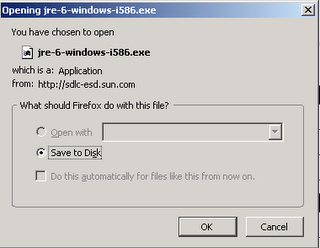
13. Save the update to your computer:
14. When installing, be alert to the options. If you do not
have the Google Toolbar installed on your computer, you may find the
offering illustrated below. UNcheck "Google Toolbar for Internet
Explorer" if you do not want the toolbar included with the installation.
There may be other pre-checked "optional" installs that you may also
choose to uncheck.

15. Restart the computer to finalize the process after completing the download/install of the SunJava update.
16. Optional: Verify the version installed at http://www.java.com/en/download/help/testvm.xml
Following the above instructions will help keep your computer not only updated but also less vulnerable to infections inherent in older versions of SunJava.
15. Restart the computer to finalize the process after completing the download/install of the SunJava update.
16. Optional: Verify the version installed at http://www.java.com/en/download/help/testvm.xml
Following the above instructions will help keep your computer not only updated but also less vulnerable to infections inherent in older versions of SunJava.

No comments:
Post a Comment